Your banner and your live widget show your server, with its real numbers, where players already are: forums, clan sites, Discord. Here is how to get each one, where it fits, and how to see what it brings.
Banner or widget: what each one is
The banner is a picture with live numbers on it:
- the players (bots not counted) and the slots;
- the map;
- the place in its game, with "TOP x%";
- the flag and the votes this month;
- the last 24 hours, as a line.
It refreshes about every minute and turns grey when the server is offline. A click on it opens your server's page.
The widget is a live box for a website. It shows whether the server is online, the players and slots, the map with its picture and the 5 best players right now. It has three buttons: Play, Copy IP and Vote. It updates itself every minute.
In short: the banner goes on forums and in signatures, where only a picture fits. The widget goes on your own site.
Get your banner code
- Open your server's page on GTScope. At the bottom, open the card Banner for your site. In your panel, the button Get the banner code takes you there too.
- Pick a size: Standard Banner (560x95), Mini Userbar (460x24) or Box Banner (300x250).
- Pick a theme: Default Dark, Crimson Red, Neon Cyber, Forest Green or Clean Light. Some premium tiers get 3 more, and you can set your own colours.
- Pick the background: the map played now, the game's cover, or plain.
- Pick the banner's language (EN, RO, DE or FR) and the file (WebP or PNG). WebP is lighter; take PNG if an older forum refuses the picture.
- Copy the code you need: BBCode for forums, HTML for websites, or the direct link for Discord and Steam.

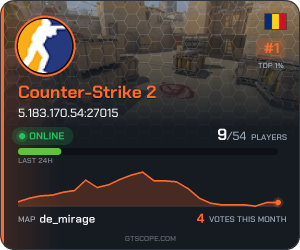

560×95 for a forum signature, 300×250 for a side column, 460×24 for a short signature. Their numbers change by themselves.
The card is on your server's public page, so your regular players can take the banner too. Ask them to put it in their own forum signatures.
Where each size works
- 560×95, in forum signatures. The classic one. Paste the BBCode in the signature field of your forum profile, and every post you write shows your server live.
- 460×24, in short signatures. For forums that allow only a thin line under a post.
- 300×250, in the side column of a site. A clan site, a blog, your server's own site. Paste the HTML code; in WordPress, use a Custom HTML block.
- The direct link, in Discord or on Steam. Anywhere the address of a picture is enough.
Many forums limit the height of pictures in signatures. Read the rules first; where 95 pixels is too tall, use the 460×24 userbar.
Discord may keep its own copy of a picture, so a banner pasted in a chat can stay frozen. For a status that stays live in your channel, open your server's Alerts in the panel, paste your channel's webhook and tick A live status message in the channel. That message shows the live banner too.
Clicks that pay
A click on your banner on another site counts once the visitor has seen your server's page for 3 seconds. Robots and previews are not counted.
Each paid visit gives you:
- XP: 5;
- credits: 1.
A visit is paid when:
- the visitor came from another site;
- your server is approved and claimed;
- the visitor is not you or your network;
- that visitor was not paid for yet today (once a day per visitor);
- you are under the limit of 10 a day, for all your servers together.
Banner codes from before 15.10.2026 are not counted. If your banner is older than that, copy the code again and replace it everywhere you put it.
Server not claimed yet? On its page, press Claim this server. It takes about a minute.
Credits pay for promotion on GTScope, such as a Bump or a Highlight. The full rules are on the credits page.
The live widget
- On your server's page, open the card Live widget for your site.
- Set the options: Look (Dark or Light), Who plays now (Show the list or Only the numbers) and Language.
- Press Copy the code. You get a small HTML code, an iframe.
- Paste it in an HTML block of your site or forum: a page, a sidebar.
Forums usually strip iframes from posts and signatures. On a forum, the widget needs an HTML block added by the forum's admin, for example in the sidebar.
The visitors who reach your page through the widget are counted in your statistics. The widget pays no credits, though: only banner clicks do.
See what they bring
Open your panel, pick your server, then Statistics.
- Visitors of the server's page puts the last 30 days next to the 30 before. It shows how many visitors pressed Play or copied the IP, and where they came from: your banner and your widget each have a line, next to Google, Discord and the others.
- Your banner on other sites shows the visitors your banner brought today, in 7 days and in 30 days, and the credits it earned.
Change one thing at a time: a new forum, another size, another theme. Check again a week later and keep what brings players, not just page views.
Next steps
For more ways to get known, read how to promote your server. The players your banner brings can vote for you too: see how to get more votes.